
Klinify’s ERP E‑Invoicing allows clinics to submit invoices directly to LHDN’s MyInvois portal, ensuring compliance and reducing manual effort.
Key Features
- TIN validation for both businesses and individual patients
- Direct submission of invoices to MyInvois portal
- Invoice status tracking with validated links in Klinify
- QR code generation on bills for individual request
Submission Flows
Two different submission flows are available:
- Consolidated Invoice Flow – for bulk submission of invoices. (The MyInvois system restricts bulk uploads to 100 documents per batch, a combined size of 5 MB, and a maximum size of 300 KB per document.)
- Individual Invoice Flow – for patients who specifically request an E‑Invoice.
To get started, there are some initial setup to go through first:
- Add Heals Healthcare as Intermediary in MyInvois portal. Here is the full user guide from LHDN : How to Add and Manage Intermediary
- Ensure E-Invoice is enabled by navigating to User Groups > Edit User Groups > Permission

- E-Invoicing Profile Setup in Klinify
- Fill in your clinic’s business details

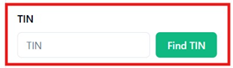
Navigate to Settings > Business Details and enter the necessary clinic information. If the option is unavailable, review your user group permissions. - Clinics may use “Find TIN” button to authenticate business TIN from MyInvois system.

- Fill in your clinic’s business details
- Patient Information: When registering patients, please ensure the following:
- Malaysian IC Number should be numbers only, i.e. no hyphens (-) or spaces ( ); select ID Type as NRIC
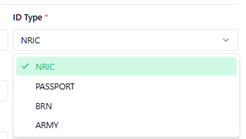
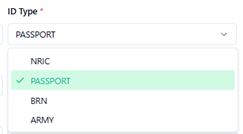
- Foreign patients should have their passport number filled in (if individual E-Invoice is required); select ID Type as Passport
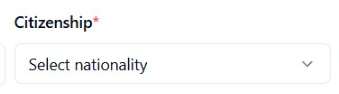
- Citizenship/Nationality field must be filled in to ensure SST calculations accuracy
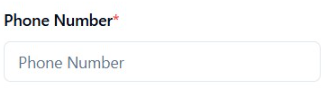
- Telephone number field should follow standard format without hypen (-) or spaces ( ) (i.e. +601234567890)
- If patient is unsure of their TIN, user’s can click on “Find TIN” to authenticate patient TIN from MyInvois system. (if individual E-Invoice is required)
- Malaysian IC Number should be numbers only, i.e. no hyphens (-) or spaces ( ); select ID Type as NRIC
After setting up, you may proceed to submit your bills following the flows below:
a. Consolidated Invoices for ERP Submission - Click Here
b. Individual Invoices for patients who request E-Invoice - Click Here
In order to activate this feature, a one‑time fee will be applied. Kindly contact Klinify Support for further information.