
The SST function allows clinics to configure taxable and non‑taxable sales items during billing in three steps.
Step 1: Create a Default SST 6% Tax Entry
This step is essential to prevent reporting data disruption with older charges or tax amounts.
Instructions:
Go to Settings > Discount and Charges.
Click Add New Discount & Charges.
Fill in the required fields and set Default SST = YES.
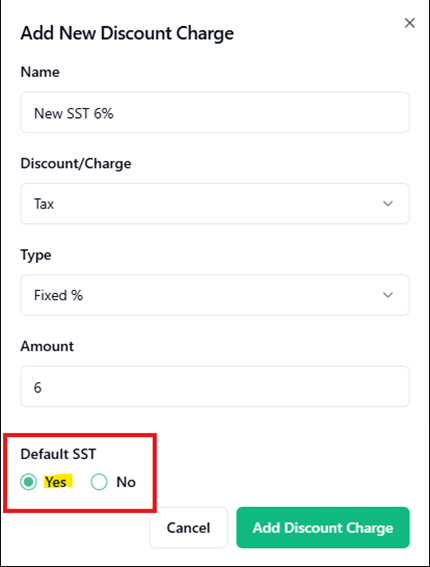
Click Add Discount & Charges.
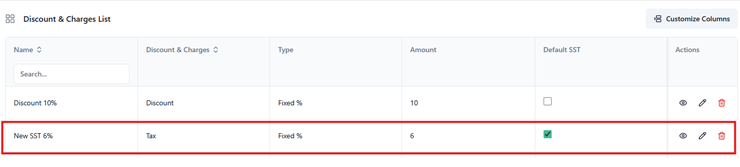
Preview of newly added SST
Step 2: Review Taxable and Non‑Taxable Sales Items
In this step, you identify sales items that should be excluded from SST calculation (e.g., consultation fees). By default, all items are set as taxable.
Instructions:
Navigate to Settings > Sales Items.
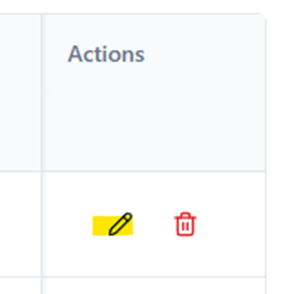
Click the pen icon (edit button) under the Actions column. (May also add new Sales Items: Click here for full guide)
Under SST Chargeable, select NO for non‑taxable items.
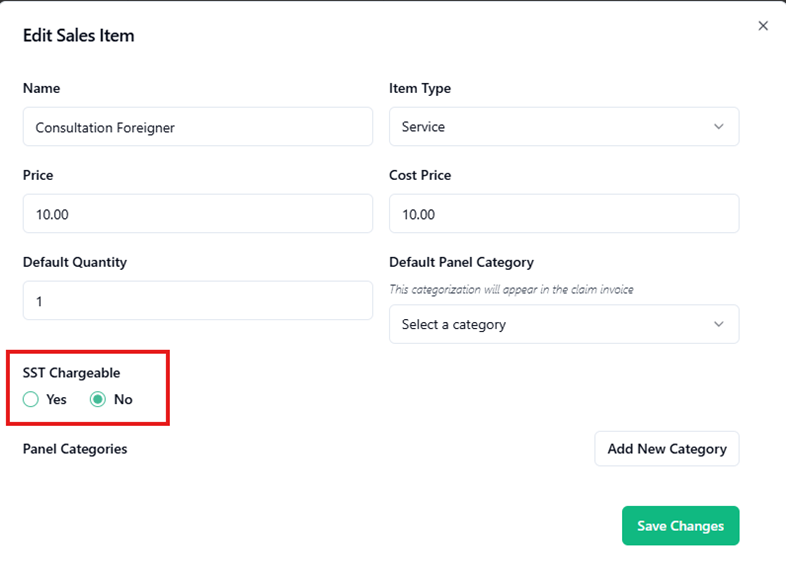
Click Save Changes.
Step 3: Apply SST During Billing
SST is applied manually during the billing stage for foreign patients.
Instructions:
Ensure the correct version of consultation (sales item) is selected, as configured in Step 2.
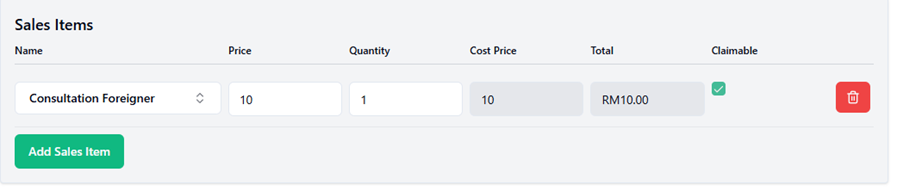
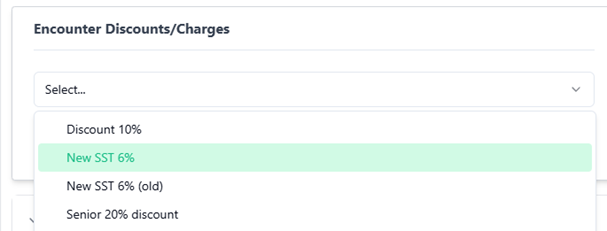
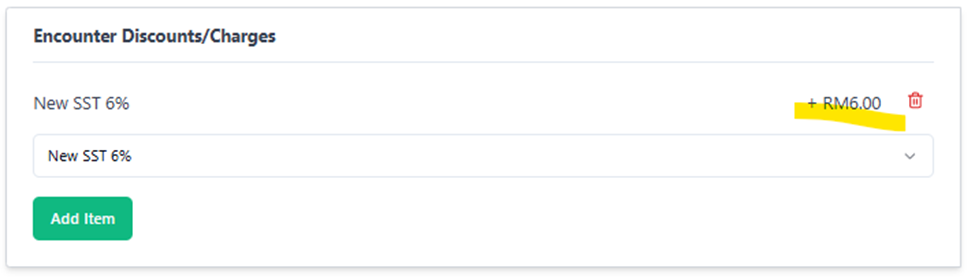
Go to Encounter Discount/Charges and select the default SST created in Step 1.
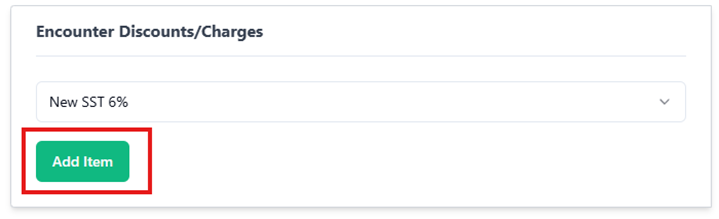
Click Add Item.
SST will be automatically calculated based on taxable and non‑taxable items.
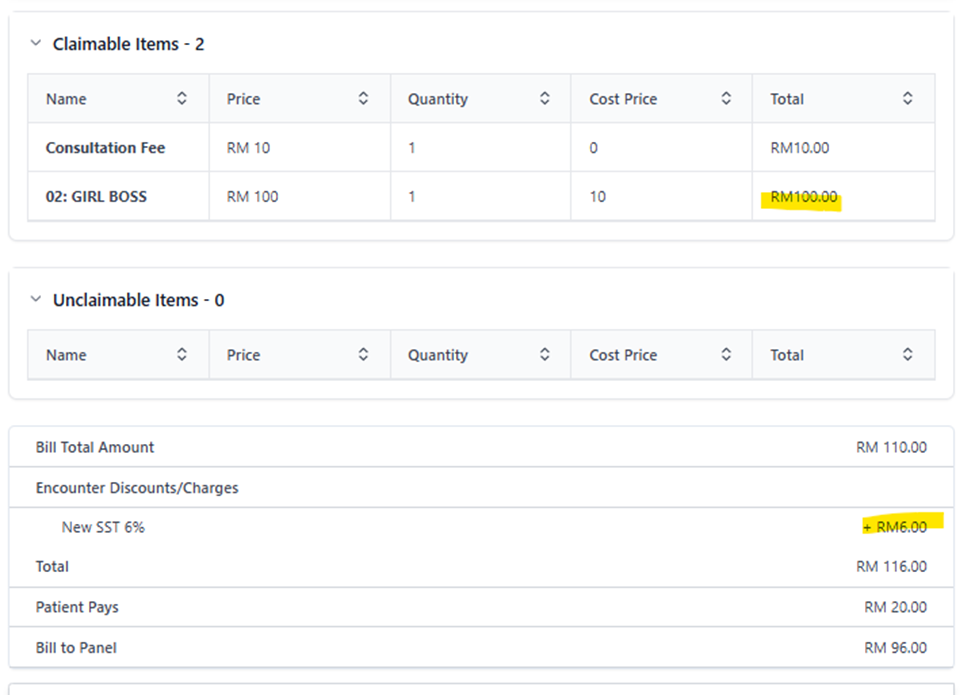
Review the prices and click Finalize Bill.
With these steps, SST 6% will be correctly applied to non‑Malaysian patients while maintaining accurate reporting and compliance.