
Overview
This guide explains how to copy prescriptions from a patient’s previous consultation into a new prescription entry.
Steps
Navigate to Patient Page
Scroll down to the Add Prescription section.

Select Copy Previous Prescription
Click on Copy Previous Prescription.

View Previous Prescriptions
A window will appear with Copy from Previous Prescriptions displayed at the top left corner.
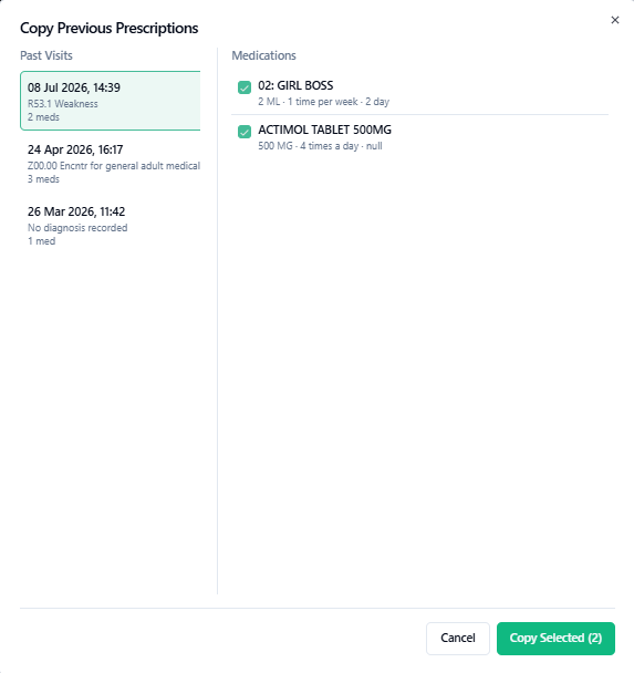
Choose Encounter Date
Click on the relevant encounter date to view the patient’s previous prescriptions on the right side.
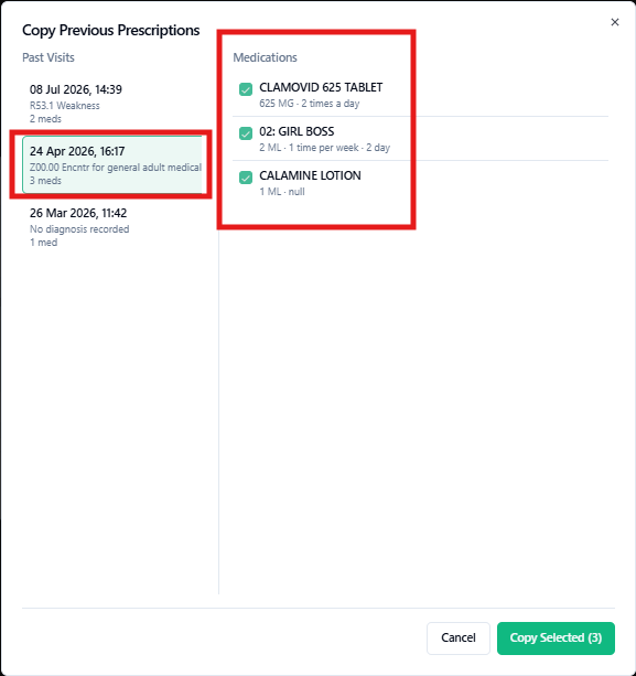
Select Prescriptions to Copy
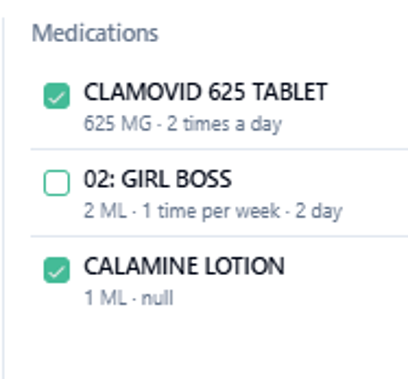
Tick the prescriptions you want to copy from the chosen consultation.
Copy Selected Prescriptions
Click Copy Selected.
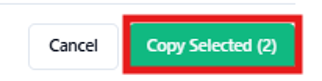
The selected prescriptions will be added to the Prescription section, where you can make any required changes.
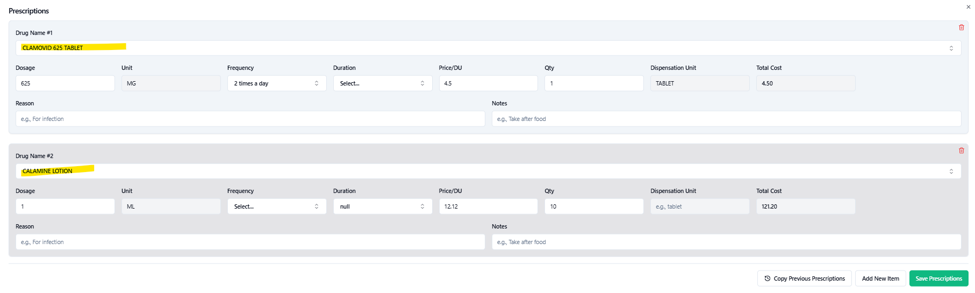
Add or Save Prescriptions
If additional medications are required, click Add New Item.
Otherwise, click Save Prescriptions at the bottom right corner.
The saved information will appear under the Prescriptions section.

If you need further assistance, feel free to contact Klinify Chat Support via the  icon.
icon.
Jika anda memerlukan bantuan, sila hubungi Klinify Chat Support melalui ikon .
.